A cracked screen is annoying. A screen that no longer responds at all is a genuine problem, because everything on the phone suddenly sits behind a barrier you cannot tap through.
The device itself is usually fine. Storage, memory, and the operating system keep working normally, which means your photos and messages are still there waiting to be reached.
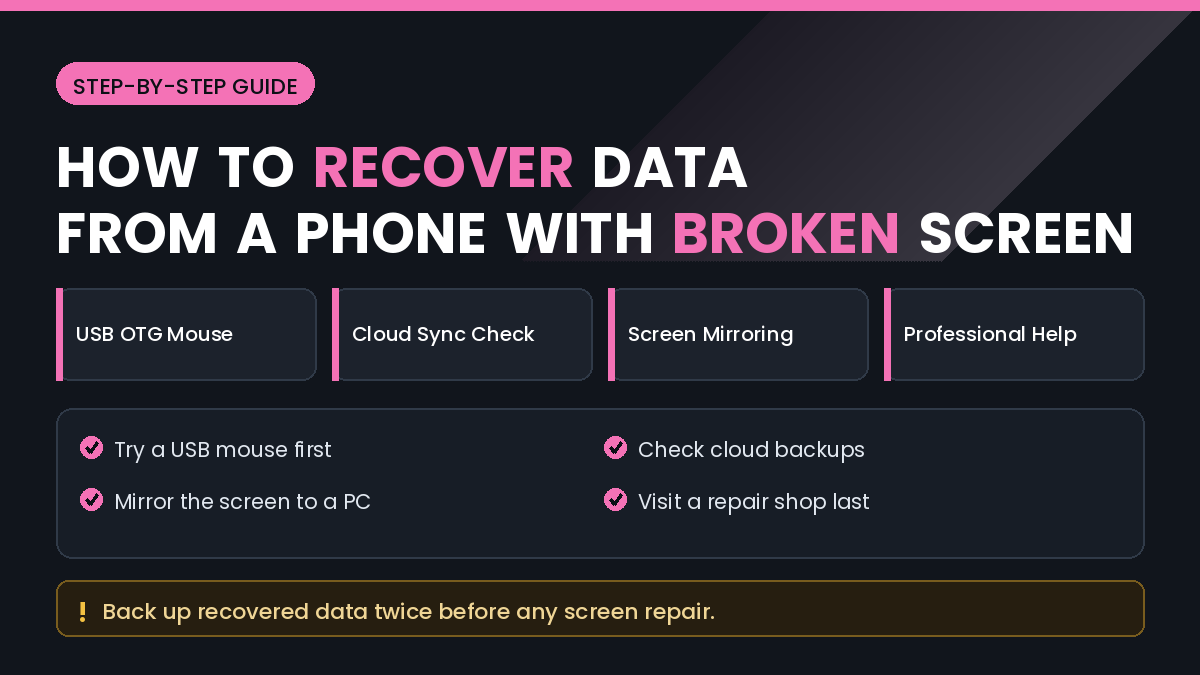
In this guide, you will learn How to Recover Data from a Phone with a Broken Screen, starting with the methods that need nothing more than a cheap cable and finishing with when a repair shop is the sensible choice.
Quick Answer
If the screen displays an image but touch does not work, connect a USB mouse through an OTG adapter. The mouse produces an on-screen pointer that lets you unlock and operate the phone normally.
If the screen is completely black but the phone is on, check your cloud backups first. Google Photos, Google Drive, iCloud, and manufacturer clouds may already hold most of what you need.
If the phone was previously connected to a computer and trusted, plugging it in may give you direct file access without touching the screen at all.
Do not send the phone for repair before extracting what you can, because repairs occasionally require a reset.
Why the Data Is Usually Still Recoverable
A phone screen is two systems in one. The display panel shows the image, and a separate digitiser layer detects touch.
Either can fail independently. A phone with a shattered display may still register touch perfectly, and a phone with a clear picture may have a dead digitiser.
Neither failure affects the storage chip where your data lives. The obstacle is input and output, not the data itself.
This is why alternative input methods work so well. Give the phone another way to receive commands and it behaves normally again.
How to Recover Data from a Phone with a Broken Screen
Method 1: Use a USB Mouse with an OTG Adapter
This is the single most effective method for a phone that shows a picture but ignores touch.
What You Need
- A USB OTG adapter matching your phone’s port
- Any standard USB mouse, wired or wireless
- A charged phone
Step by Step
- Connect the OTG adapter to your phone’s charging port.
- Plug the mouse into the adapter.
- Wait for a pointer to appear on the screen.
- Use the pointer to enter your PIN or draw your pattern.
- Navigate to your files, photos, or messages.
- Enable cloud backup, or connect the phone to a computer to copy files.
A pattern lock can be drawn by holding the left mouse button and dragging. It feels awkward but works reliably once you get the rhythm.
Some phones support a USB hub, letting you attach a keyboard at the same time. A keyboard makes password entry considerably easier.
Method 2: Connect to a Computer for File Access
If the phone was previously connected to and trusted by a computer, the connection may still work.
Step by Step
- Connect the phone to the computer with a data cable, not a charge-only cable.
- Wait for the computer to detect the device.
- Open the file browser and look for the phone.
- Browse to internal storage.
- Copy the DCIM, Pictures, Downloads, and Documents folders.
- Verify the copied files open correctly.
Android usually requires you to approve file transfer mode on the phone, which is the difficulty here. If the phone is locked or the prompt cannot be tapped, use the mouse method first to approve it.
An iPhone that was previously trusted by a specific computer will normally connect to that same computer without a new prompt.
Method 3: Check What Is Already in the Cloud
Before working on the phone at all, see how much you already have.
Sign in from a computer and check:
- Google Photos for images and videos
- Google Drive for documents
- Google Contacts for your address book
- iCloud for iPhone data
- Samsung Cloud or your manufacturer’s service
- WhatsApp cloud backup for chat history
Many people discover that the majority of what they were worried about is already safely stored online.
Note the last backup date for each service so you know exactly what is missing rather than guessing.
Method 4: Mirror the Screen to a Computer
Screen mirroring gives you a large view and, in some setups, control from your keyboard and mouse.
Android supports mirroring through developer tools when USB debugging was enabled beforehand. If it was, a desktop mirroring utility can display and control the phone from your computer.
The catch is that USB debugging must have been switched on before the screen broke. Enabling it now requires a working touchscreen, which loops back to the mouse method.
Some manufacturers also provide their own desktop applications that connect over a cable or Wi-Fi and can browse phone content.
Method 5: Use Voice Control
If a voice assistant was already enabled, it can perform useful actions without any touch input.
Depending on your setup, voice commands may be able to:
- Send messages to contacts
- Read out recent notifications
- Open specific apps
- Start a call
- Trigger a backup in some cases
This is limited, since most assistants refuse sensitive actions while the phone is locked. It is best treated as a supplement to the mouse method rather than a replacement.
Method 6: Connect an External Display
If the display itself is dead but the phone is otherwise working, some models can output video to an external screen.
Phones supporting video output over USB-C can connect to a monitor with the right adapter. Combine that with a mouse through a hub and you have a fully usable device.
Support varies significantly by model, so check whether your specific phone supports display output before buying an adapter.
Wireless casting is another option, but it usually needs to be initiated from the phone, which is difficult without a working screen.
Things to Check Before Trying Advanced Solutions
Confirm the Phone Is Actually On
Call the number from another phone. If it rings, the device is powered and working, and only the display is affected.
Check Which Part Failed
If the picture is visible, you need input. If the picture is gone but the phone responds to touch sounds, you need output. The two problems call for different solutions.
Check the Charging Port
A dropped phone sometimes damages the port as well. If nothing connects, inspect the port for debris or damage before assuming an adapter problem.
Keep the Phone Charged
A phone that runs flat and restarts will require the PIN again and may lose the trusted connection to your computer.
Common Mistakes to Avoid
Do Not Repair Before Extracting Data
Repairs sometimes involve a reset. Copy what you can first, or explicitly instruct the shop not to reset the device.
Do Not Use a Charge-Only Cable
Many cables supplied with accessories carry power but no data. A failed connection is often the cable rather than the phone.
Do Not Keep Restarting the Phone
Each restart requires the PIN again and can drop trusted connections. Leave the phone running once you have access.
Do Not Trust Guaranteed Extraction Claims
Be cautious of software claiming it can pull all data from any locked or broken phone. Encryption on modern devices prevents this, and such tools often carry other risks.
Do Not Hand Over Your Passcode Casually
If a technician needs your code, be present while they work and change it afterwards. Your passcode protects everything on the device.
When to Get Professional Help
Some situations genuinely need a workshop.
Consider professional help when:
- The phone does not power on at all
- The phone was exposed to water
- The charging port is damaged and nothing connects
- The data has serious personal, legal, or business value
- None of the input methods above produce a response
- The device is under warranty
A common and sensible approach is to pay for a temporary screen replacement purely to extract the data, then decide whether the phone is worth keeping. Tell the shop clearly that data preservation is the priority and that the device must not be reset.
Frequently Asked Questions
Can I recover data from a phone with a completely black screen?
Often yes. Try cloud backups, a previously trusted computer connection, or an external display if your phone supports video output.
Does a USB mouse work on any Android phone?
Most modern Android phones support OTG input. A few budget models do not, so check your model if the pointer never appears.
Can I unlock the phone with a mouse?
Yes. A PIN can be clicked and a pattern can be drawn by holding the left button while dragging.
Will a repair shop erase my data?
A screen replacement should not, but some repairs require a reset. State clearly that your data must be preserved.
Can I recover WhatsApp chats from a broken phone?
If a cloud backup exists, restore it on a new device using the same number. Otherwise you will need access to the original phone.
Does this work on an iPhone?
Partly. iPhones support accessibility input differently, so a previously trusted computer connection and iCloud are usually the better routes.
What if the phone is locked and the screen is dead?
Cloud backups become your main option, since encryption prevents extraction from a locked device.
Is it worth replacing the screen just for the data?
Often yes when the data matters. A temporary panel costs less than professional recovery and gives full access.
Final Thoughts
Knowing How to Recover Data from a Phone with a Broken Screen depends on identifying which half of the screen failed.
If you can see the display, a USB mouse and an OTG adapter solve the problem for a very small cost and give you complete control.
If the display is dark, cloud backups and a previously trusted computer connection are your strongest options, followed by an external monitor on phones that support it.
Extract everything you can before any repair, and be explicit with the technician that data preservation comes first.
Once your files are safe, store them in two places. A broken screen is a reminder that any single device can become unreachable without warning.